
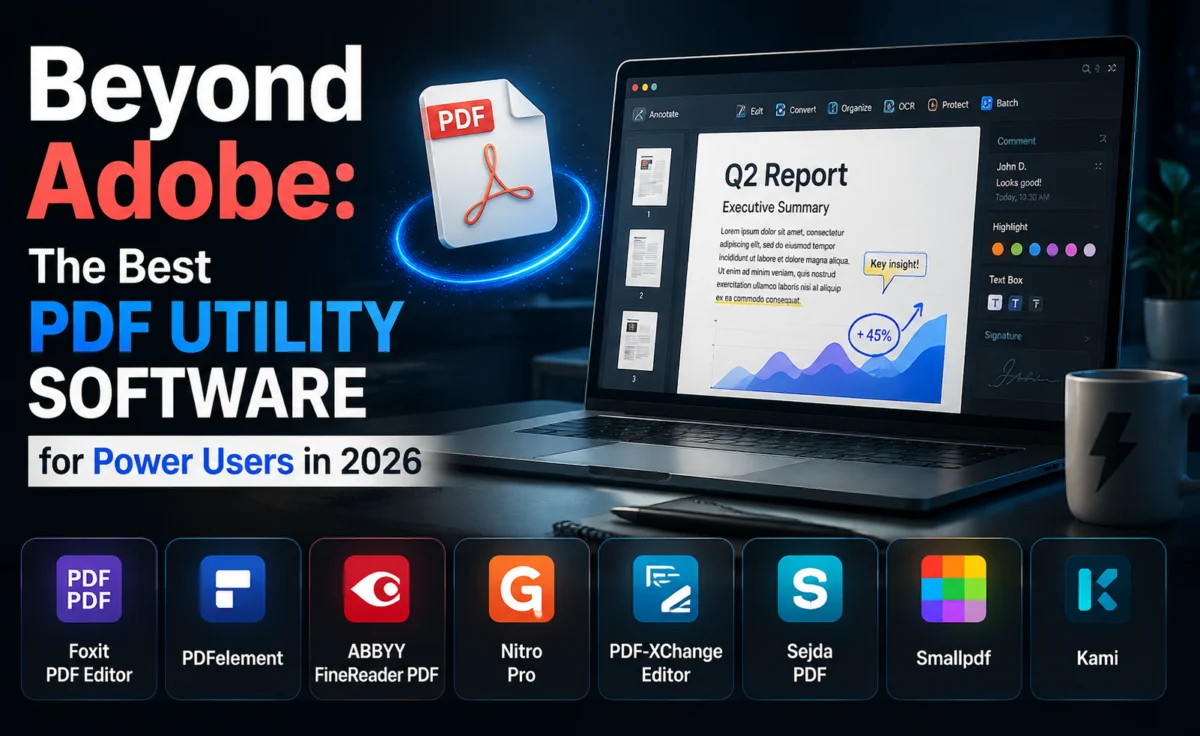
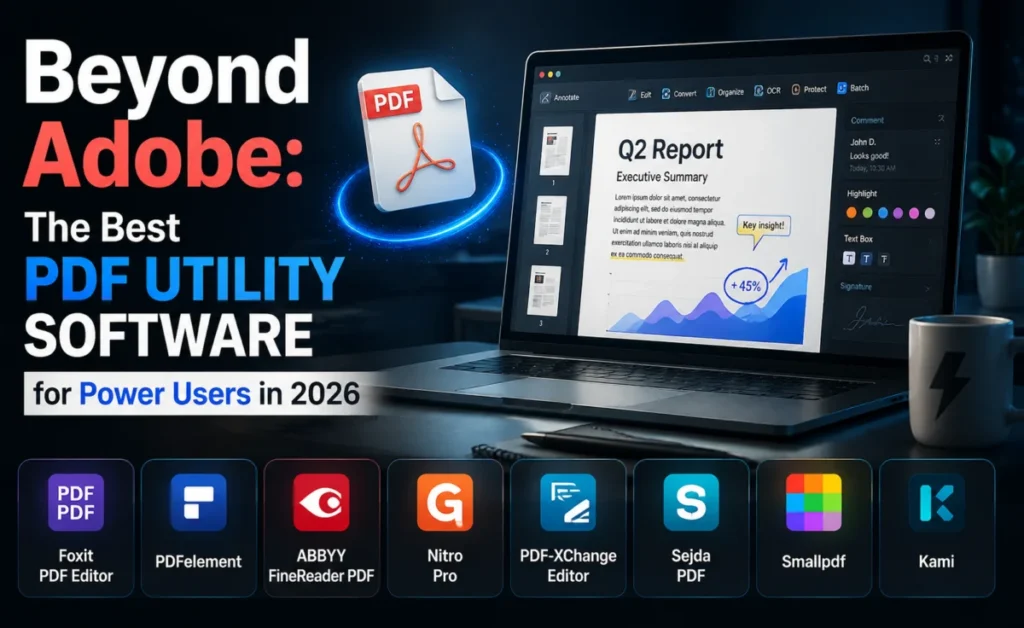
Adobe Acrobat built the PDF format, but it no longer owns the category of tools for working with it. Between browser-based editors, offline desktop suites, and command-line utilities built for automation, there’s now a genuinely better fit for almost every workflow — often at a fraction of Acrobat’s subscription price. We rounded up the utilities worth knowing about, organized by what you’re actually trying to do.
The PDF Utility Landscape Has Quietly Gotten Very Good
For years, “I need to edit a PDF” meant one of two options: pay for Acrobat, or fight with a clunky free converter that mangled your formatting. That’s no longer true. A new generation of tools has closed the gap on core editing, and in some cases — batch processing, OCR accuracy, form automation — surpassed what Acrobat offers out of the box. The trick is knowing which tool actually fits your use case, because “PDF software” now spans everything from lightweight annotators to full document-automation platforms.
Quick-Reference Comparison
| Tool | Best For | Platform | Aovory Score |
|---|---|---|---|
| Adobe Acrobat Pro | Enterprise, full feature set | Windows/Mac/Web | ★★★★☆ |
| Foxit PDF Editor | Fast, lightweight editing | Windows/Mac | ★★★★☆ |
| PDF-XChange Editor | Budget power users | Windows | ★★★★★ |
| Nitro PDF Pro | Small business teams | Windows/Mac | ★★★★☆ |
| PDFsam Basic | Merging/splitting only, free | Cross-platform | ★★★★☆ |
| qpdf / Ghostscript | Automation, scripting | Command line | ★★★★☆ |
The Reviews
1. Adobe Acrobat Pro — Still the Default for a Reason
Acrobat remains the most complete single tool in this list: editing, e-signatures, redaction, form creation, and the most reliable PDF/A archival export in the category. It’s also the most expensive by a wide margin, running on a subscription model that frustrates users who only touch PDFs occasionally. For legal, compliance, and enterprise document teams, though, the depth of features usually justifies the cost.
Pros: Most complete feature set, industry-standard compatibility, robust redaction tools.
Cons: Expensive subscription, heavier install, overkill for casual use.
2. Foxit PDF Editor — The Speed-Focused Alternative
Foxit opens large files noticeably faster than Acrobat and mirrors most of its core editing tools closely enough that switching teams need almost no retraining. Its collaboration features — shared review threads, cloud commenting — are aimed squarely at teams migrating off Acrobat without wanting to relearn a workflow.
Pros: Fast performance, familiar interface, strong collaboration tools.
Cons: Some advanced redaction features lag behind Acrobat.
3. PDF-XChange Editor — The Best-Kept Secret in This List
This is the tool we’d point most individual power users toward. The free version alone out-features many paid competitors — commenting, OCR, form filling — and the paid license, sold as a one-time purchase rather than a subscription, unlocks full editing at a fraction of Acrobat’s annual cost. The interface is genuinely dense with toolbars, which is either a feature or a drawback depending on how much control you want at your fingertips.
Pros: One-time purchase pricing, excellent free tier, powerful OCR.
Cons: Cluttered interface for beginners, Windows-only.
4. Nitro PDF Pro — Built for Small Teams
Nitro’s strength is its admin panel — license management, usage reporting, and centralized deployment that make it easy for a small business to roll PDF editing out across a dozen machines without an IT department. The editing features themselves are solid without being groundbreaking.
Pros: Easy team deployment, solid e-signature workflow, clean UI.
Cons: Fewer power-user tools than PDF-XChange, pricier per seat than expected.
5. PDFsam Basic — Free and Laser-Focused
PDFsam doesn’t try to be an all-in-one editor, and that focus is its biggest strength. If your entire need is merging, splitting, rotating, or extracting pages, PDFsam does it cleanly, for free, without nagging you to upgrade. The paid “Enhanced” tier adds batch automation for those who need to process hundreds of files at once.
Pros: Completely free core tool, no bloat, cross-platform.
Cons: Not an editor — text and image editing require a different tool.
6. qpdf and Ghostscript — For Developers and Automators
When PDF handling needs to be baked into a script rather than clicked through manually, command-line utilities like qpdf (for structural operations — merging, splitting, encryption) and Ghostscript (for rendering, compression, and format conversion) are the workhorses behind countless internal business tools. There’s no GUI here, and that’s exactly the point.
Aovory Pro Tip: Before paying for a subscription tool, check whether a free option covers your actual use case. A huge share of “I need PDF software” requests are really just “I need to merge two files” or “I need to remove a page” — jobs PDFsam handles for free in under a minute.
Matching the Tool to the Job
- Occasional light editing: PDF-XChange Editor’s free tier, or your browser’s built-in PDF viewer for simple annotations.
- Team collaboration and e-signatures: Foxit or Nitro, depending on budget per seat.
- Enterprise compliance and redaction: Adobe Acrobat Pro remains the safest choice.
- Just merging or splitting files: PDFsam Basic — don’t pay for more than you need.
- Automating PDF handling inside another application: qpdf or Ghostscript via script.
Compatibility and File Size Considerations
One detail that rarely makes it into feature comparison charts is how differently these tools handle compression on export. A scanned contract saved out of Acrobat and the same file saved out of Foxit can differ noticeably in final file size, largely due to how aggressively each tool recompresses embedded images. If you’re routinely emailing large scanned documents or uploading to a portal with strict size limits, it’s worth testing a save-and-compress pass in whichever tool you land on rather than assuming defaults are optimized for your use case. PDF-XChange in particular exposes granular compression settings that the others tuck away in an “advanced” menu, which makes it easier to shrink a bulky file without visibly degrading scanned text.
A Closer Look at Security Features
PDF security is more than a password prompt, and it’s worth understanding the difference before you rely on it. Basic password protection restricts who can open a file, but permissions-based restrictions — disabling printing, copying, or editing — are considerably weaker and can be stripped by widely available tools in seconds. If a document genuinely needs to stay confidential, encryption strength matters more than which buttons are grayed out in the viewer.
Redaction is where the gap between tools is largest. True redaction in Acrobat and Foxit permanently removes the underlying text and image data, not just paints a black box over it visually. Cheaper or free tools frequently get this wrong — the “redacted” text is still selectable and searchable underneath the black rectangle, which has caused real, documented data leaks in legal and government settings. If redaction is part of your workflow, don’t assume any tool handles it correctly; verify by trying to select text under the black box after redacting a test file.
Batch Processing and Automation
For anyone processing PDFs at volume — invoices, contracts, scanned forms — the ability to batch process matters more than any single editing feature. PDF-XChange Editor’s batch tools can apply OCR, watermarking, or compression across thousands of files in one pass. Nitro and Acrobat both offer similar “Action Wizard” style automation for repetitive tasks like renaming files based on content or applying a consistent header across a folder of documents. For anything beyond what a GUI action wizard can handle, that’s where qpdf and Ghostscript take over, since they’re built to be called from scripts and scheduled tasks rather than clicked through manually.
Frequently Asked Questions
Are free PDF editors safe to use?
Established tools like PDFsam and PDF-XChange’s free tier are safe and well-maintained. Be cautious with unfamiliar browser-based “free PDF converter” sites, especially when uploading sensitive documents — read the privacy policy before uploading anything confidential.
Which tool has the best OCR for scanned documents?
PDF-XChange Editor and Adobe Acrobat both perform strongly here; in our informal testing, accuracy on clean scans was comparable between the two, with Acrobat holding a slight edge on messier, low-resolution scans.
Do I need a subscription, or can I buy a PDF editor outright?
Several tools on this list, including PDF-XChange Editor and some Nitro licenses, still offer one-time purchase options — worth checking before defaulting to a subscription.
Is redaction in free tools actually safe to trust?
Not always. Test any redaction tool by attempting to select or search the text underneath the black box before relying on it for genuinely sensitive documents.
Can I edit a scanned PDF like a regular text document?
Only after running OCR (optical character recognition) on it first. Until then, a scanned PDF is just an image — tools like PDF-XChange, Acrobat, and Foxit all include OCR to convert scanned pages into selectable, editable text.
The Verdict
Most individual users are overpaying for PDF software they don’t need. Unless redaction and enterprise compliance are non-negotiable requirements, PDF-XChange Editor delivers the best value in this entire category, and PDFsam Basic is unbeatable for the narrow job of merging and splitting files at zero cost. Save Acrobat’s subscription for the teams that genuinely need its full enterprise feature set — for everyone else, the alternatives have caught up.
About the Author